



You review your dash cam footage after a drive, expecting to hear the sounds of traffic or a conversation during an incident. The video looks normal, but there is no audio.
It can be frustrating, especially when you want to preserve important details about what happened on the road.
Fortunately, a dash cam recording without sound does not always indicate a hardware problem. The microphone may have been turned off, the microphone opening may be obstructed, or the playback device may not be playing the audio track correctly.
Before considering a replacement, work through these six possible causes.
1. Audio Recording May Be Turned Off
One of the first things to check is whether audio recording is enabled.
Many dash cams allow drivers to turn the microphone on or off independently of video recording. This is useful when you want to record the road without capturing conversations inside the vehicle.
However, it is also easy to turn the microphone off accidentally.
Check the audio recording indicator on your dash cam screen. If the microphone is muted or audio recording is disabled, turn it back on and make a short test recording.
How to Enable Audio on TERUNSOUL Dash Cams
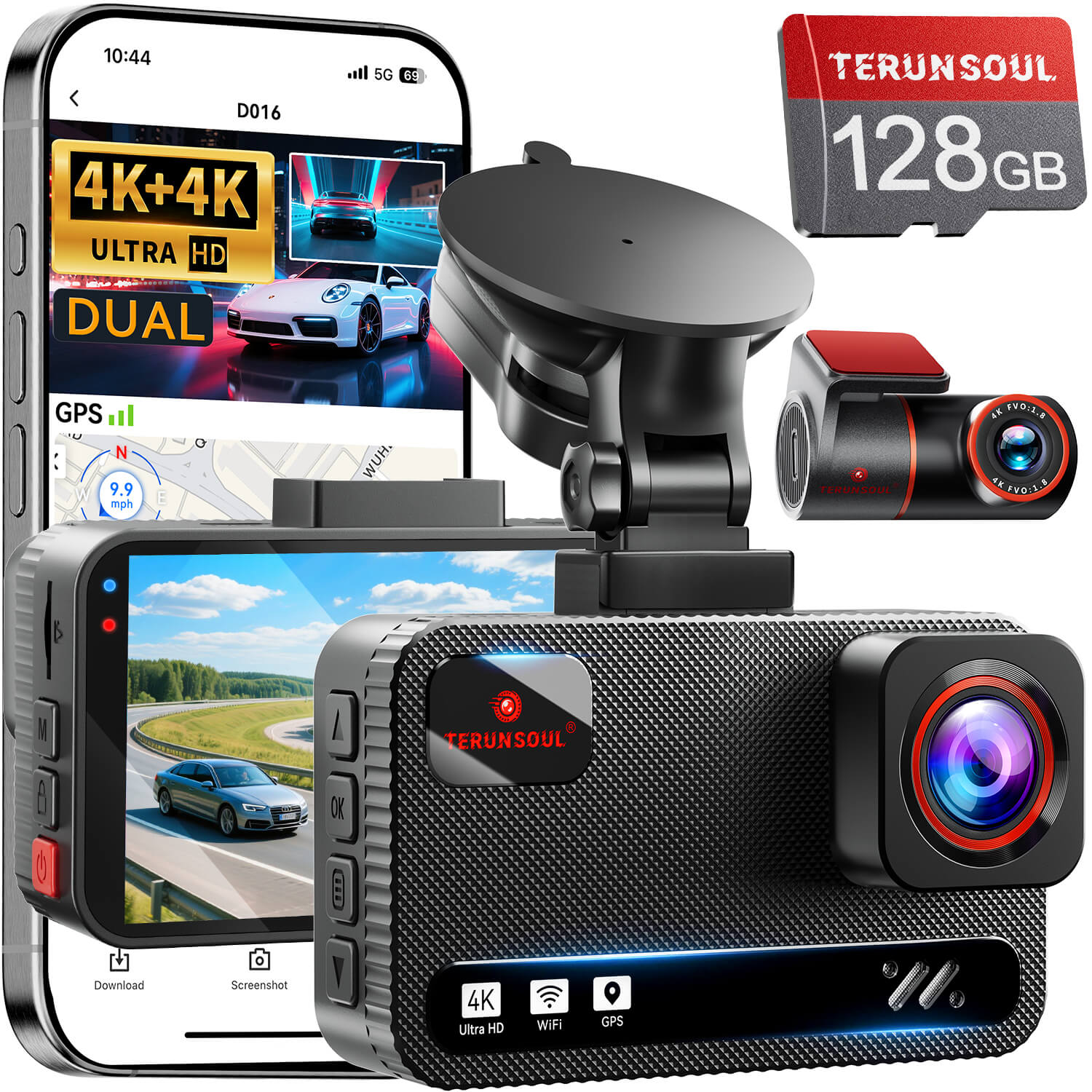
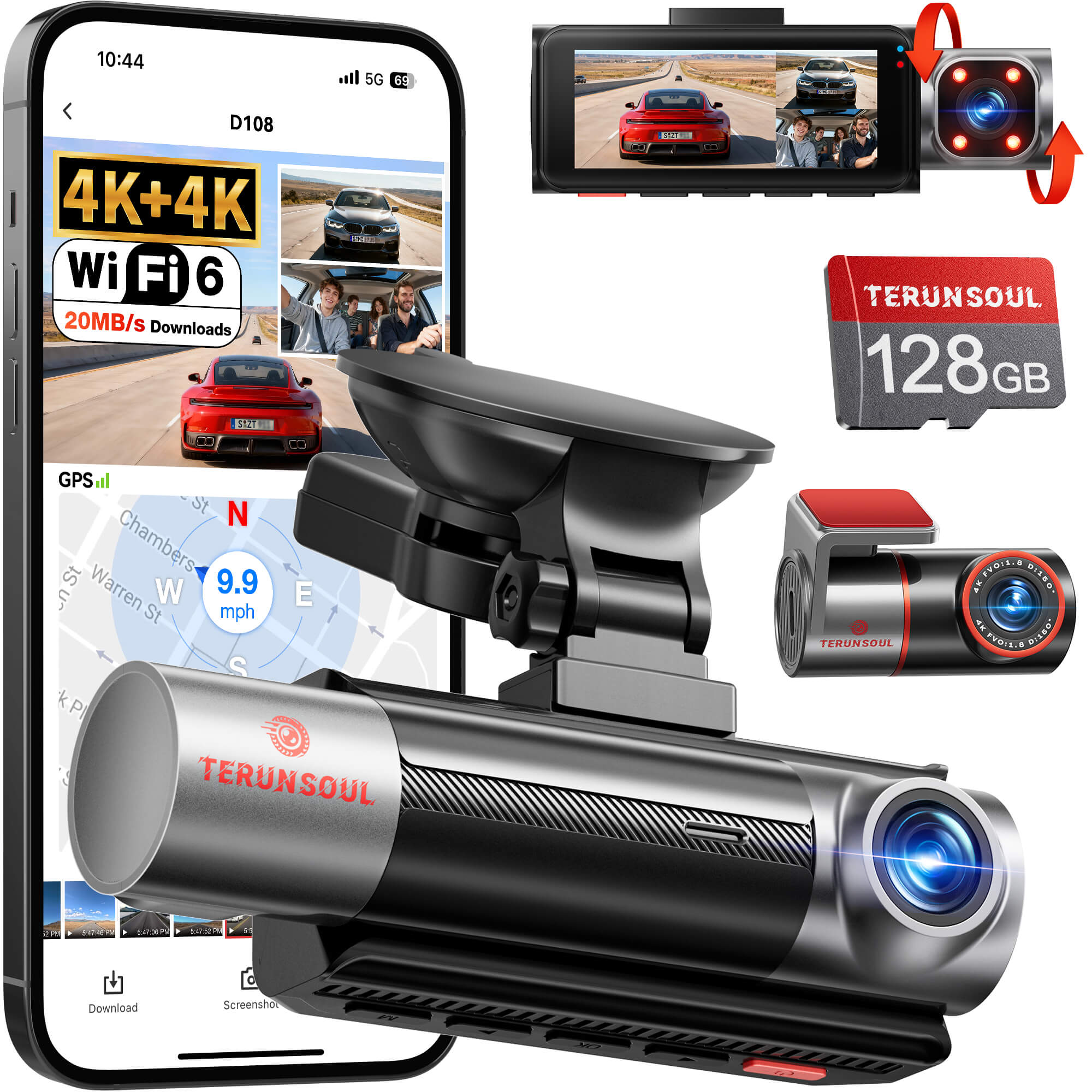
Different TERUNSOUL models use different button operations.
-
Make sure the camera is on its recording interface.
-
Press and hold the Down button for approximately 2 seconds.
-
This toggles audio recording between ON and OFF.
-
Check the audio status indicator to confirm the setting.
-
Make sure the camera is on its recording interface.
-
Press and hold the Down button for approximately 2 seconds.
-
Audio recording will switch between ON and OFF.
-
Check the screen to confirm the current audio status.
-
Make sure the camera is on its recording interface.
-
Briefly press the Up button.
-
This switches audio recording ON or OFF.
-
Check the audio recording indicator on the screen.
The button operations are different, so make sure you follow the instructions for your specific model.
Important: On the D016 and D018, physical buttons are disabled while the camera is connected to the phone through Wi-Fi. Disconnect the app connection before using the physical button to change the audio setting.
If you are unsure about the button layout, refer to the TERUNSOUL Installation and Support Guide.
2. The Recording Has Audio, but Your Phone Cannot Play It
Sometimes the dash cam records audio correctly, but you cannot hear anything when playing the video on your phone.
This can happen because of playback settings rather than a microphone problem.
For example:
-
Your phone's media volume is turned down.
-
The playback application is muted.
-
Your phone is sending audio to Bluetooth headphones or another connected device.
-
The video player does not properly support the audio track.
-
The downloaded or shared video file has been processed or compressed.
How to Fix It
Start by checking your phone's media volume and confirming that the correct speaker is selected.
Next, download the original video file from the dash cam and try playing it with a different compatible media player.
You can also transfer the original file to a computer and compare the results.
If the video has sound on the computer but not in your phone's app, the recording itself may be working properly. The issue may be related to the phone, app, or playback settings.
This is why it is important to test the original recording before assuming the dash cam microphone has failed.
3. The Microphone Opening May Be Blocked
A dash cam microphone needs an unobstructed opening to capture sound.
Dust, debris, adhesive residue, or an incorrectly positioned accessory may interfere with the microphone.
If the opening is partially blocked, recordings may sound muffled or unusually quiet. If it is completely covered, the recorded audio may be extremely faint or absent.
How to Fix It
Check the camera body and locate the microphone opening using your model's user manual.
Then:
-
Inspect the opening for dust or debris.
-
Check whether any mounting accessory or adhesive material is covering it.
-
Remove visible surface dust with a soft, dry brush.
-
Make sure no protective film is covering the microphone opening.
Avoid inserting pins, needles, or other sharp objects into the opening. These can damage the microphone.
If the camera is new and the microphone has never worked properly, check the installation and packaging for any material that may have been left in place.
4. Wind and Road Noise May Be Affecting Audio Quality
Not every audio problem means that the microphone has stopped working.
Sometimes the camera is recording sound, but the audio is difficult to understand because of environmental noise.
Common examples include:
-
Wind entering through an open window.
-
Loud road and tire noise.
-
Strong airflow from nearby vents.
-
Loud music inside the vehicle.
-
Excessive background noise during highway driving.
These sounds can overpower quieter voices and make a recording seem unclear or almost silent.
How to Fix It
If you notice poor audio quality, try a short test recording while the vehicle is parked safely.
Speak at a normal volume near the camera and compare the result with a recording made during regular driving.
Check that the microphone opening is unobstructed and that the device is installed according to the manufacturer's instructions.
If the audio is clear while parked but difficult to understand at highway speeds, background noise may be the main issue rather than a faulty microphone.
5. The Video File or Memory Card May Have a Problem
A damaged or incomplete video file can make playback unreliable.
For example, a recording may have been interrupted by an unexpected loss of power, or a file may become corrupted during storage or transfer.
Memory card problems can also cause missing recordings, playback errors, and interrupted video files.
However, a faulty memory card should not automatically be treated as the cause of every silent recording. First establish whether the problem affects one file or every new recording.
How to Fix It
Try the following checks:
Check other recordings. Play several different video clips. If only one recording has no sound, the issue may be limited to that file.
Record a new test clip. Make a short recording with audio enabled and check whether the new file contains sound.
Check the memory card. Look for repeated card errors, missing files, or recordings that stop unexpectedly.
Back up important footage. Save any recordings you want to keep before attempting formatting or other storage maintenance.
If formatting is necessary, use the method recommended in your camera's user manual. Remember that formatting deletes the existing files on the card.
Do not format the card as the first troubleshooting step when audio is missing.
6. A Software Issue or Microphone Hardware Problem
If audio recording is enabled, the microphone is unobstructed, and the original video files consistently contain no sound, the issue may involve the camera's software or hardware.
Before concluding that the microphone is defective, try a few basic checks.
Recommended Troubleshooting Steps
Restart the dash cam. Turn the device off safely, disconnect power as instructed, and restart it. Then make a new test recording.
Check the recording settings. Confirm that audio recording remains enabled after restarting.
Check firmware information. Refer to the manufacturer's official support information to see whether an update is available for your exact camera model.
Avoid unverified firmware files. Never install firmware intended for a different model.
If the problem continues, contact customer support with the following information:
-
Your dash cam model.
-
Whether audio recording is enabled.
-
Whether the problem affects all recordings or only certain files.
-
Whether the microphone produces any sound during a new test recording.
-
Any error messages displayed by the camera.
Providing these details can help the support team identify the problem more efficiently.
A Quick Troubleshooting Checklist
Before assuming your dash cam microphone is defective, work through this checklist:
-
Check the audio setting: Make sure the microphone recording function is turned on.
-
Check playback: Play the original file on another device or media player.
-
Inspect the microphone: Make sure the opening is not blocked.
-
Make a test recording: Record a new short clip and check its audio.
-
Check the memory card: Look for corrupted files, missing footage, or recording interruptions.
-
Restart and check support information: Follow the manufacturer's instructions before attempting more advanced troubleshooting.
In many cases, a simple setting adjustment or playback check can help identify the issue.
Does Turning Off Audio Stop Video Recording?
No. Audio recording and video recording are separate functions on the TERUNSOUL models discussed in this guide.
You can turn off audio recording while continuing to capture video footage.
This can be useful when you want to retain visual records without recording conversations inside the vehicle.
It is also important to understand that an interior camera and an audio microphone serve different purposes. For example, the D018's 1080P cabin camera records visual activity inside the vehicle, while the audio recording setting controls microphone capture.
Turning off the microphone does not mean that the cabin camera must stop recording.
A Note About Privacy and Audio Recording
Recording audio inside a vehicle involves more than choosing whether the microphone is enabled.
Privacy and audio-consent requirements vary depending on where you drive and the circumstances of the recording. Some U.S. states require consent from all parties when recording certain conversations.
This is particularly important for rideshare drivers, taxi operators, and anyone regularly carrying passengers.
Before recording conversations, check the applicable local rules. Inform passengers when required, and use the microphone switch when you do not want to capture audio.
A dash cam should help preserve useful driving records while respecting the privacy of everyone in the vehicle.
Frequently Asked Questions
Why does my dash cam record video but not sound?
The most common things to check are whether audio recording is disabled, whether the playback device is muted, and whether the microphone opening is obstructed. Test an original recording on another device before assuming hardware failure.
Can I turn off audio recording without stopping video recording?
Yes. On supported TERUNSOUL models, audio recording can be switched off independently while video recording continues.
How do I turn on audio recording on a TERUNSOUL D016?
During the recording interface, press and hold the Down button for approximately 2 seconds to toggle audio recording ON or OFF.
How do I turn on audio recording on a TERUNSOUL D018?
During the recording interface, press and hold the Down button for approximately 2 seconds. Check the screen's audio indicator to confirm the setting.
How do I turn on audio recording on a TERUNSOUL FW983A?
During the recording interface, briefly press the Up button to switch audio recording ON or OFF.
Does a dash cam record conversations inside the vehicle?
A dash cam with a built-in microphone can record sound inside the vehicle when audio recording is enabled. Whether and how you may record other people's conversations depends on applicable privacy and consent laws.
Should I format my memory card if my dash cam has no sound?
Not immediately. First check the audio settings, playback device, microphone opening, and a newly recorded test clip. Only consider formatting when there is evidence of a storage-related problem, and always back up important files first.
Final Thoughts
A dash cam recording without sound does not necessarily mean the device is broken.
An accidentally disabled microphone, a playback issue, a blocked microphone opening, or a corrupted file can all affect what you hear when reviewing footage.
Start with the simplest checks and work through the troubleshooting steps in order. For TERUNSOUL users, remember that D016, D018, and FW983A use different button operations to control audio recording.
Understanding these small settings before you need important footage can make your dash cam easier to use and help you get more value from every recording.

Hinterlasse einen Kommentar
Alle Kommentare werden vor der Veröffentlichung geprüft.
Diese Website ist durch hCaptcha geschützt und es gelten die allgemeinen Geschäftsbedingungen und Datenschutzbestimmungen von hCaptcha.