


You review your dash cam footage after a night drive, expecting to see the road clearly. Instead, headlights look like bright blobs, license plates are difficult to read, and moving vehicles appear blurred.
If this sounds familiar, you are not alone. Nighttime recording can be challenging because a dash cam has to capture a moving scene while dealing with limited light, bright headlights, reflections, and changing road conditions.
The good news is that some causes of blurry footage are easy to address. Others are limitations of night recording that you should understand before expecting a camera to capture every detail.
Here are seven common reasons your dash cam footage may look blurry at night, along with practical ways to troubleshoot each one.
1. A Dirty Camera Lens or Windshield
Before changing any settings, check the glass.
Dust, fingerprints, oily residue, and water spots can interfere with the light entering the camera. This may become especially noticeable at night, when headlights and streetlights create bright reflections around dirty areas.
The inside of the windshield matters, too. Even if the outside looks clean, a thin film on the interior glass can affect the image recorded by a camera mounted behind it.
How to fix it
-
Gently clean the dash cam lens according to the manufacturer's instructions.
-
Clean both sides of the windshield in the area viewed by the camera.
-
Check for fingerprints, water spots, haze, or any protective film that should have been removed.
-
Let the glass dry completely and inspect a new recording.
If the footage improves after cleaning, the problem may have been optical contamination rather than the camera's resolution or night vision capability.
Avoid abrasive materials or cleaning products that could damage the lens coating or windshield surface.
2. Reflections From the Dashboard and Windshield
Have you ever noticed the dashboard appearing as a faint reflection at the bottom of your dash cam video?
Reflections from the dashboard, windshield, or other surfaces inside the vehicle can become distracting at night. When headlights or streetlights illuminate the glass at certain angles, the camera may capture both the road scene and reflected interior details.
This can reduce contrast and make some areas of the footage harder to distinguish.
How to fix it
Start by checking the camera's mounting position. Make sure it is secure and aimed appropriately at the road.
You can also reduce avoidable reflections by keeping the dashboard area near the windshield clear of reflective objects. If your dashboard is particularly reflective, a suitable non-reflective dashboard mat may help.
A circular polarizing lens (CPL) filter is another option. A compatible CPL can reduce certain reflections from glass and other surfaces, potentially improving contrast in the right conditions.
However, a CPL is not a universal fix for night footage. Polarizing filters also reduce some of the light entering the camera, which can make an already dark scene darker. Compare recordings with and without the filter in the conditions where you actually drive, rather than assuming it will always improve nighttime clarity.
3. Headlights Are Overexposing the Scene
Bright headlights, reflective license plates, streetlights, and dark surroundings create a high-contrast scene. The camera must handle very bright areas and much darker areas at the same time.
When the brightest areas are overexposed, details can disappear into white glare. A nearby license plate may look like a bright rectangle instead of showing readable characters.
This is not necessarily a sign that the camera is defective. It can be a limitation of how the imaging system handles a particular lighting situation.
How to fix it
First, look for available exposure or dynamic-range settings in your camera's menu. If your model supports WDR or HDR, check the manual to understand which settings are available and how they should be used.
Dynamic-range processing can help balance bright and dark areas, but results vary by camera and scene. It cannot guarantee readable plates in every situation, especially when vehicles are moving quickly or the light is extremely challenging.
Review several clips recorded under different conditions. A camera may handle well-lit urban streets differently from an unlit country road.
4. Motion Blur in Low-Light Conditions
A nighttime recording can look soft even when the lens is clean and the camera is installed correctly.
One reason is motion blur.
In low light, a camera may need a longer exposure to gather enough light for an image. If the vehicle or an object in the scene moves during that exposure, its details may appear smeared.
This is particularly noticeable when trying to read the license plate of an oncoming car or a vehicle passing at speed.
How to fix it
Check whether your dash cam offers recording settings that affect image processing or exposure, and follow the manufacturer's guidance. Not every model allows users to adjust shutter speed or exposure directly.
Avoid assuming that increasing brightness will solve motion blur. A brighter image may still contain smeared details if the subject moved while it was being captured.
It is also important to set realistic expectations. A dash cam cannot always capture a perfectly readable plate from a fast-moving vehicle in a dark environment. Distance, relative speed, lighting, and the camera's imaging system all influence the result.
5. The Camera Is Mounted at the Wrong Angle
Camera placement affects more than the composition of the video. It can also influence how well the camera captures the details you care about.
If the camera is tilted too high, the frame may contain too much sky and too little road. If it is pointed too low, important traffic details farther ahead may be missing. A poorly secured mount can also allow the camera to shift or vibrate.
A camera aimed through a part of the windshield with persistent haze, streaks, or poor visibility may also produce disappointing results.
How to fix it
-
Check that the mount is secure and that the camera has not shifted.
-
Aim the camera so the road ahead occupies most of the useful frame while keeping relevant traffic signals and road signs visible.
-
Make sure the lens looks through a clean area of the windshield, ideally one cleared by the wipers.
-
Confirm that the camera does not obstruct your view of the road.
Follow your model's installation instructions rather than copying another vehicle's exact camera angle. Windshield shapes, mounting locations, and camera designs differ.
After adjusting the position, record a short test clip and review it when safely parked.
6. Resolution, Bitrate, and Compression Are Not the Same Thing
A dash cam can advertise 4K resolution and still produce footage that looks disappointing at night.
Resolution describes the number of pixels in the image, but it does not tell the whole story about video quality. Bitrate, compression, the camera's sensor and lens, image processing, and lighting conditions can all affect the detail that survives in the final file.
When a scene contains moving vehicles, rain, headlights, and many small details, video compression may make those details harder to preserve. This can appear as blocky textures, smearing, or loss of fine detail.
How to fix it
First, check your camera's available recording-quality settings. If the device offers bitrate or quality options, follow the manufacturer's recommendations and make sure your memory card supports the required recording workload.
Second, inspect the original recording rather than relying only on a clip sent through a messaging app or uploaded to social media. Some services compress video when it is shared, which can make the image look worse than the original file.
Third, compare footage at its native resolution. Repeatedly zooming in on a small crop can exaggerate limitations that are less noticeable in normal playback.
For a deeper explanation, read our guide: What Is Dash Cam Bitrate? How It Affects Video Quality and Storage.
Remember that higher bitrate is not a complete solution by itself. The quality of the whole imaging system and the conditions in which the video was recorded still matter.
7. Rain, Fog, Condensation, and Water Drops
Night driving in wet or humid conditions can make an otherwise good recording look poor.
Water droplets on the windshield can scatter headlights and streetlights. Fog or condensation can create a hazy layer in front of the lens. Rain can also make the road more reflective, adding bright highlights and reducing the contrast between objects.
These effects can make it difficult to see road markings, nearby vehicles, or license plates.
How to fix it
Before driving, check that the windshield is clear in the area covered by the camera. Use the defroster when necessary to address interior fogging, and make sure the wipers can clear the relevant viewing area.
If the image suddenly becomes hazy in humid weather, check for condensation on the windshield or lens instead of immediately changing the camera's settings.
Keep in mind that a camera cannot remove all the visual effects of rain, fog, or spray. In poor conditions, slower driving and greater following distance are more important than trying to make the recording look brighter.
A Quick Troubleshooting Checklist
If your nighttime footage looks blurry, try these checks in order:
1. Review the original file. Make sure the blur is present in the original recording rather than only in a shared or compressed copy.
2. Clean the lens and windshield. Remove dust, fingerprints, haze, and water spots.
3. Check reflections. Look for dashboard reflections and consider whether the camera position or a compatible CPL filter could help.
4. Inspect the mounting angle. Make sure the camera is secure and the road occupies an appropriate portion of the frame.
5. Review image settings. Check the available recording-quality and dynamic-range options in the manual.
6. Compare clips in different conditions. Look at recordings from well-lit roads, dark streets, wet weather, and passing traffic. This helps identify whether the main issue is reflections, overexposure, motion blur, or low light.
7. Check the memory card if you see recording errors. Card problems more commonly cause missing clips, recording interruptions, or corrupted files than consistent optical blur. If recordings stop or show errors, follow the manufacturer's instructions for checking card compatibility, condition, and formatting.
Make one change at a time and compare the results. That way, you can tell which adjustment actually helps.
Can a CPL Filter Make Night Footage Clearer?
A CPL filter can reduce certain reflections, particularly those from the windshield and dashboard. It may improve contrast when reflections are a significant part of the problem.
But it does not directly fix every cause of blurry footage.
A CPL cannot remove motion blur caused by a moving subject, correct a dirty lens, or guarantee that a reflective license plate will be readable. Because the filter reduces some incoming light, its effect can be less favorable in very dark conditions.
For drivers using the TERUNSOUL D016, the D016-compatible CPL filter is an accessory to consider when windshield reflections are the main concern. Review your own footage with and without the filter, particularly after dark, before deciding which setup works best for your driving environment.
What Should You Look for in a Dash Cam for Night Driving?
If you are shopping for a dash cam because your current footage is often unclear at night, do not compare devices by resolution alone.
Look at the entire imaging system and consider:
-
Low-light performance: How well does the camera record in dim environments?
-
Dynamic-range handling: How does it manage bright headlights and darker surroundings?
-
Lens and installation: Can the camera be positioned securely with a clear view through the windshield?
-
Recording quality: What resolution and recording settings are actually available?
-
Real sample footage: Can you review representative night footage instead of relying only on promotional claims?
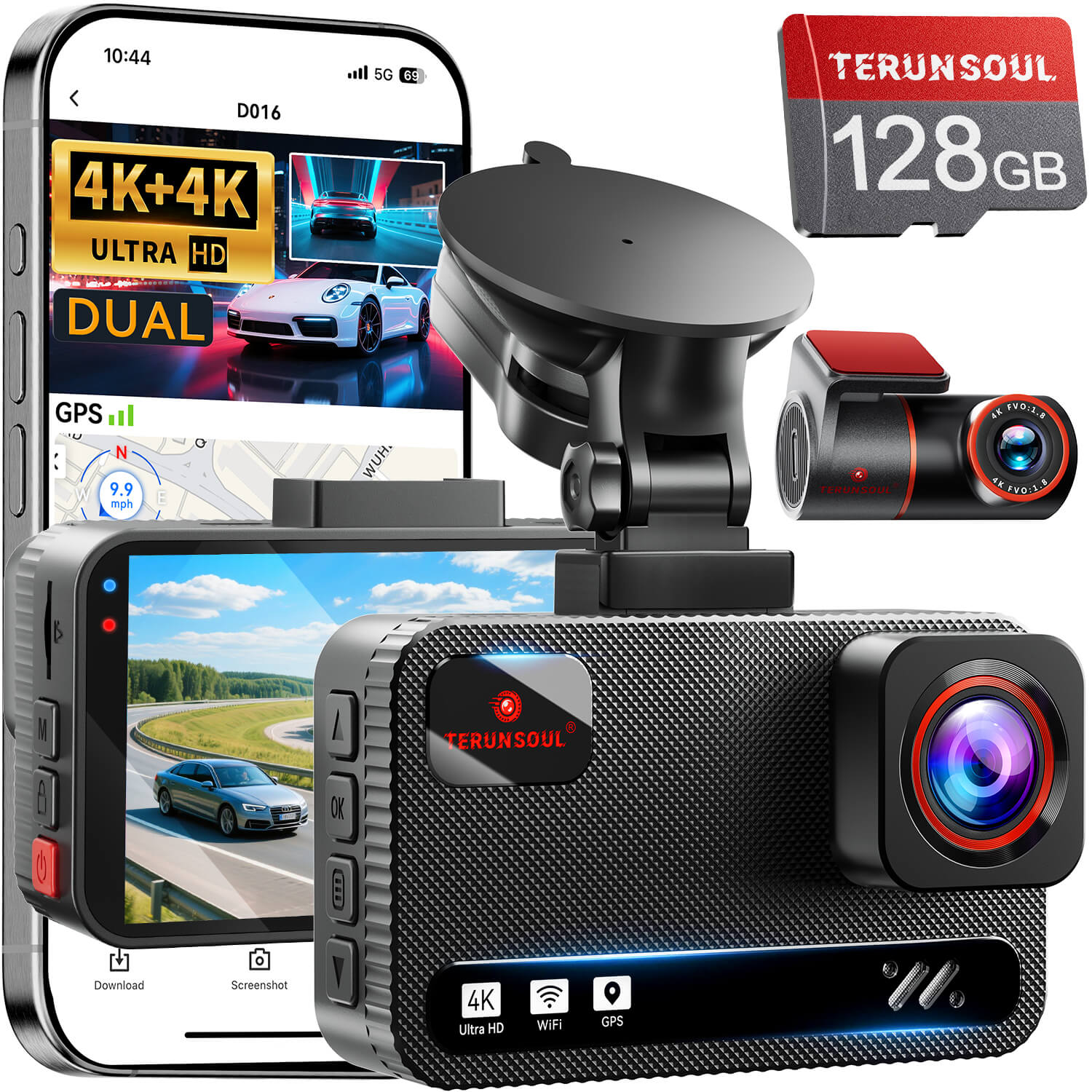
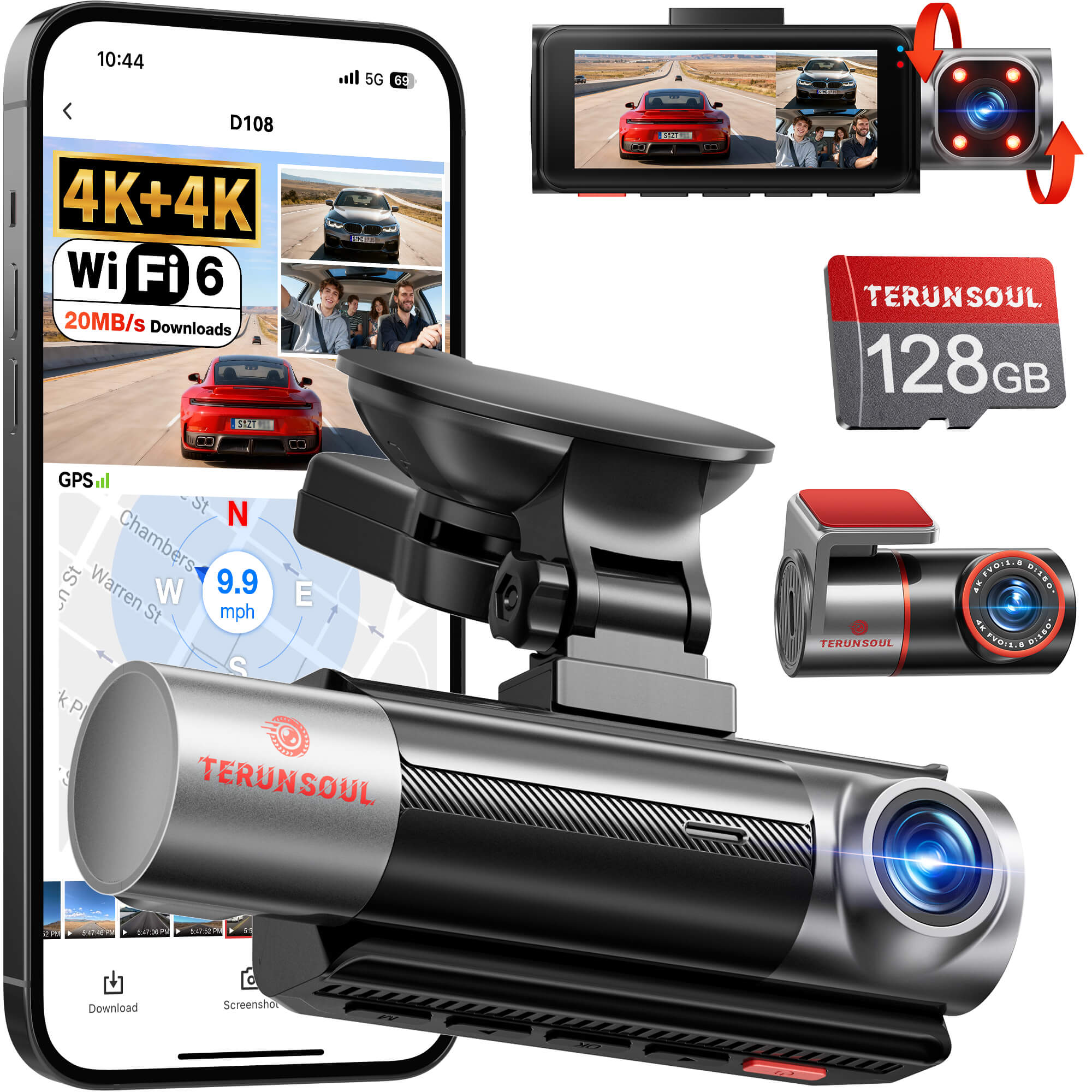
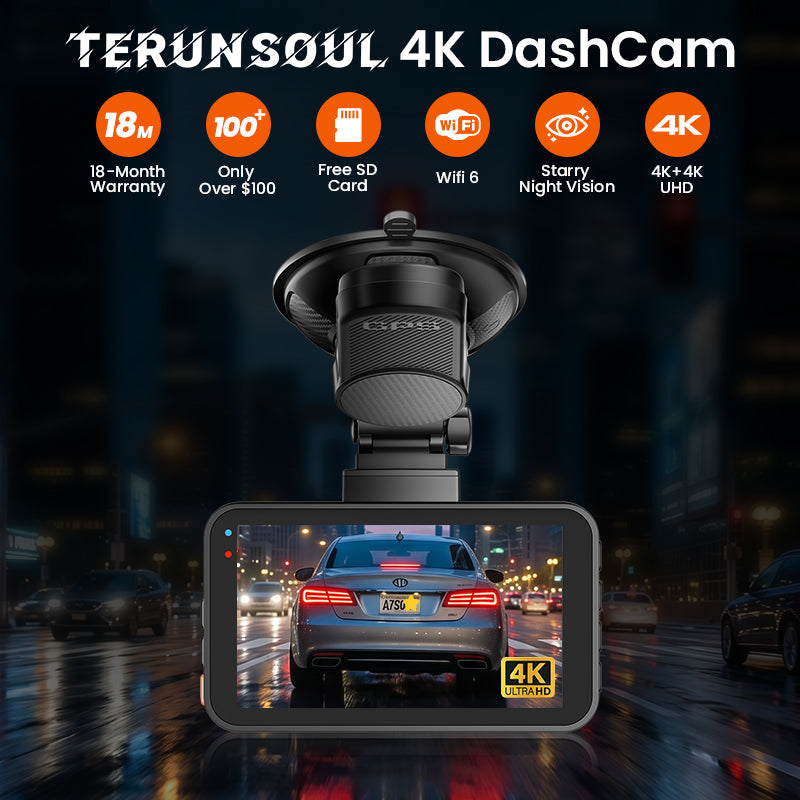
For example, the TERUNSOUL D016 4K+4K front-and-rear dash cam records 4K video from both the front and rear cameras and features Super Starlight Night Vision and WDR. It also includes GPS, dual-band Wi-Fi, and a 128GB memory card.
These specifications provide useful information about the system, but the quality of a particular nighttime recording still depends on the scene, camera placement, light levels, and recording conditions. No resolution or night-vision feature can guarantee that every detail will be captured in every situation.
Frequently Asked Questions
Why are license plates blurry in my night footage?
Common reasons include movement, distance, headlight glare, low light, exposure limitations, and video compression. A plate can also be too small in the frame to show readable detail. Review the original clip and check the camera's installation and recording settings before drawing conclusions.
Does 4K guarantee clear nighttime footage?
No. 4K describes resolution, not the complete performance of the imaging system. Sensor quality, lens design, exposure, motion, compression, and lighting all affect the final result.
Will a CPL filter solve headlight glare?
A CPL can reduce certain reflections, such as those from a windshield or dashboard, but it will not eliminate every kind of headlight glare. It also reduces some incoming light, so compare actual footage before deciding whether to use it at night.
Can a dirty windshield make a dash cam look blurry?
Yes. Smudges, haze, dust, and water spots can scatter light and make nighttime glare more noticeable. Clean both sides of the windshield in the camera's viewing area, as well as the lens according to the manufacturer's instructions.
Does a faulty memory card cause blurry video?
Memory-card problems more often lead to missing recordings, interruptions, or corrupted files than a consistently soft image. If video files show errors or the camera stops recording, check card compatibility and condition using the manufacturer's guidance.
Final Thoughts
Blurry nighttime dash cam footage does not always mean you need a new camera. A dirty windshield, interior reflections, poor positioning, difficult lighting, motion blur, or compression can all affect what you see in a recording.
Start with the simple checks: clean the glass, inspect the lens, review the camera's angle, and examine the original video file. Then assess whether lighting conditions or the camera's imaging capabilities are limiting the result.
If you are considering a new dash cam, look beyond the resolution label and pay attention to real-world low-light performance, dynamic-range handling, and sample footage.
The goal is not to expect perfect video in every situation. It is to understand what affects image quality, fix the problems you can control, and choose equipment that suits the driving conditions you face most often.

Lämna en kommentar
Alla kommentarer modereras innan de publiceras.
Denna webbplats är skyddad av hCaptcha och hCaptchas integritetspolicy . Användarvillkor gäller.